Hybrid AV screen - user guide
Hybrid AV screen connecting your laptop
Hybrid meeting – presenting content
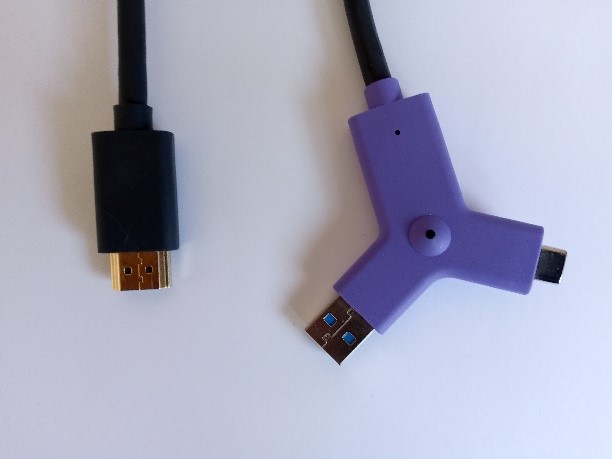
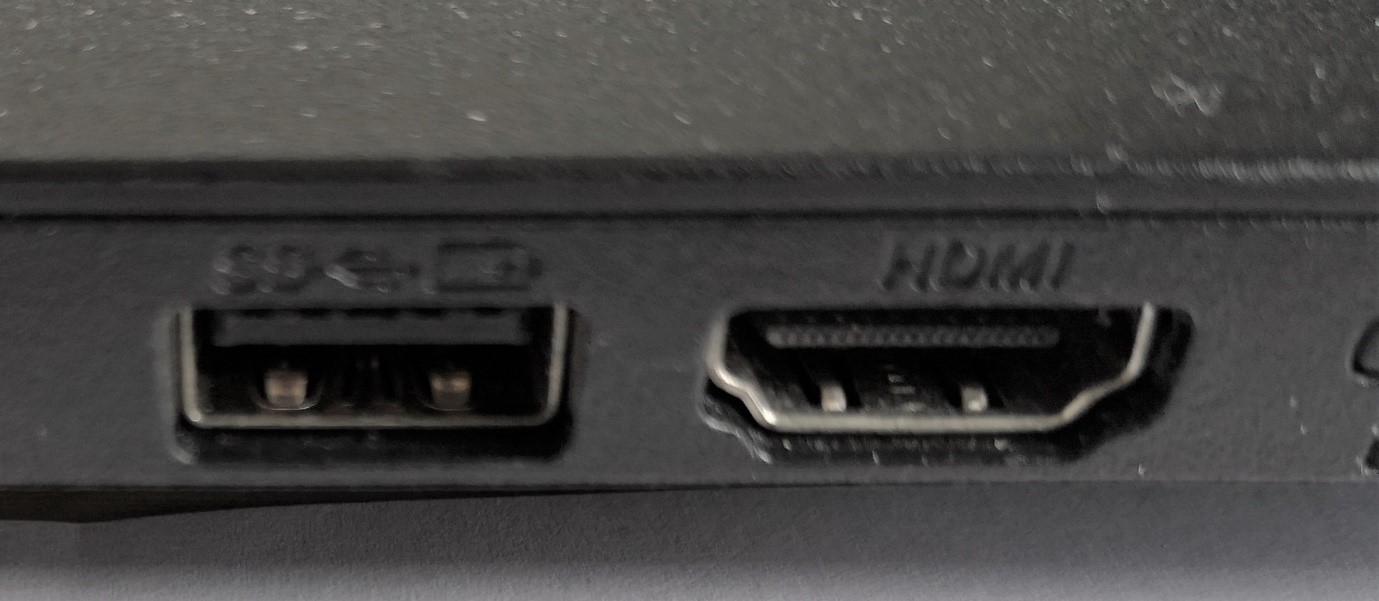
If you wish to present content from your laptop whilst in a Teams meeting you can connect to the screen via the HDMI cable, alternatively you can join the meeting from your laptop and share content. If you join the meeting from your laptop whilst the room is connected, please ensure you select the option to have no audio or you will create audio feedback in the room.
Non hybrid meetings – presenting content
If you wish to present content without joining a hybrid meeting, i.e. face to face meeting, then you can connect to the screen via either the HDMI cable or the purple Y cable.
Non-Teams hybrid meetings
If you wish to have a non-Teams hybrid meeting, such as Zoom, Webex etc. Then you can do so by using the purple Y cable.
The purple Y cable (Swytch cable)
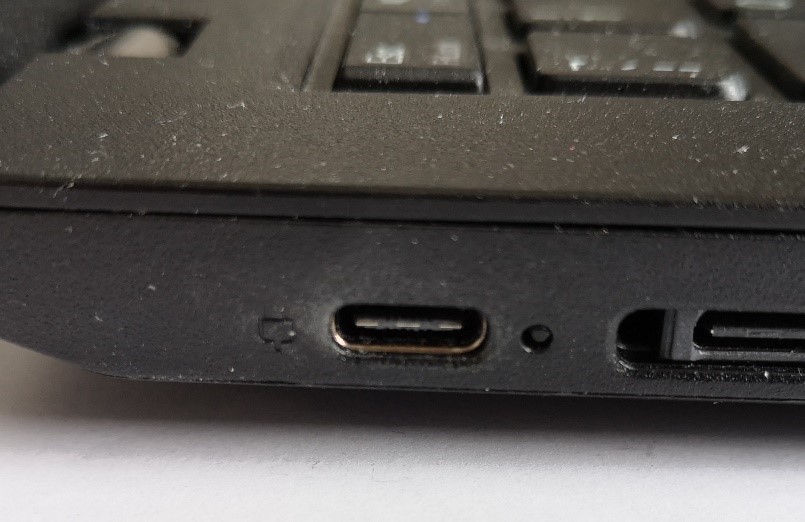
The Y cable is to be used instead of the room console, it has both USB C and USB A connections that connects your laptop to the rooms screen, camera, microphone and speakers, allowing you to control the room from your laptop. The USB C connection has the added benefit of also charging your laptop at the same time.
The Y cable needs drivers to be installed on non LCC devices but this should automatically install when first connected if permitted.
Please note, if the Y cable is connected whilst the console is in use (i.e. you are mid meeting) it will disconnect and take over the room. If you want to use the Y cable you must connect this at the start of the meeting and not during.