

Set up security checks for Oracle Fusion
From 21 November, some staff will need to complete an extra security check when signing in to Oracle Fusion. This helps protect employee information.
Who needs to set this up?
If you sign in to Oracle Fusion without using single sign-on (SSO), you will be asked to set up a security check the first time you sign in.
If you use SSO, there is no change to how you sign in. Single sign-on means you access Oracle Fusion using your usual county council sign-in details, rather than a separate Oracle Fusion username and password.
Choose how to confirm your identity
You can use:
Oracle Mobile Authenticator - receive a notification on your phone
Microsoft Authenticator - use a code from the app
Email - receive a code at your registered email address
Follow the instructions below for the option you want to use.
Before you start
Download the Oracle Mobile Authenticator app to your mobile phone from:
Google Play if you use an Android phone
the App Store if you use an iPhone
Set up the app
Sign in to Oracle Fusion using your usual details and select Next.
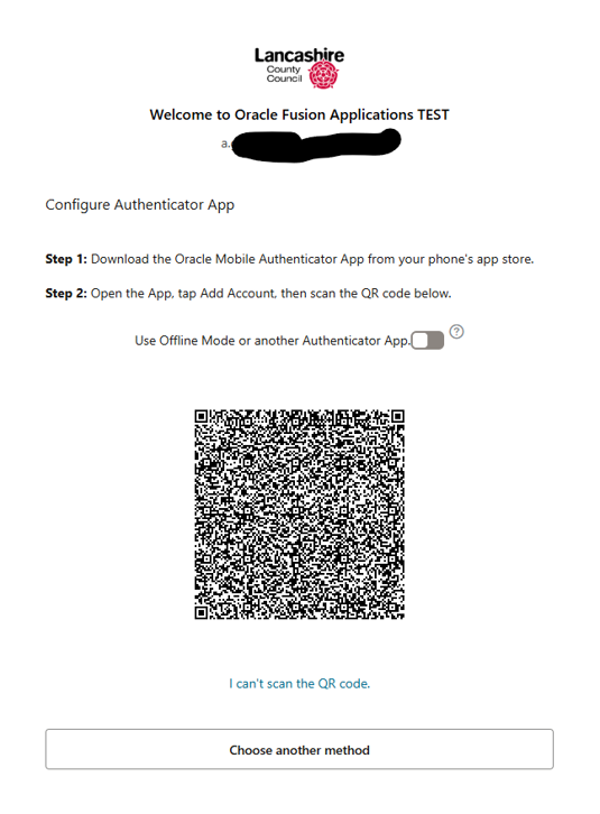
When you are asked to set up a security check, select Mobile App.
A QR code will appear on your screen.
Open the Oracle Mobile Authenticator app on your phone.
Select the blue + button at the bottom of the screen.
Use your phone's camera to scan the QR code shown on your computer.
Allow notifications when prompted. This means you can receive a notification on your phone when you need to confirm your identity.
Once your account has been added successfully, select Continue on your computer.
Your security check is now set up.
See screenshot below from authenticator app
If you cannot scan the QR code
You can still set up the Oracle Mobile Authenticator app if you cannot scan the QR code.
Make sure you have downloaded and installed the Oracle Mobile Authenticator app on your phone.
Sign in to Oracle Fusion using your usual details and select Next.
Select Mobile App.
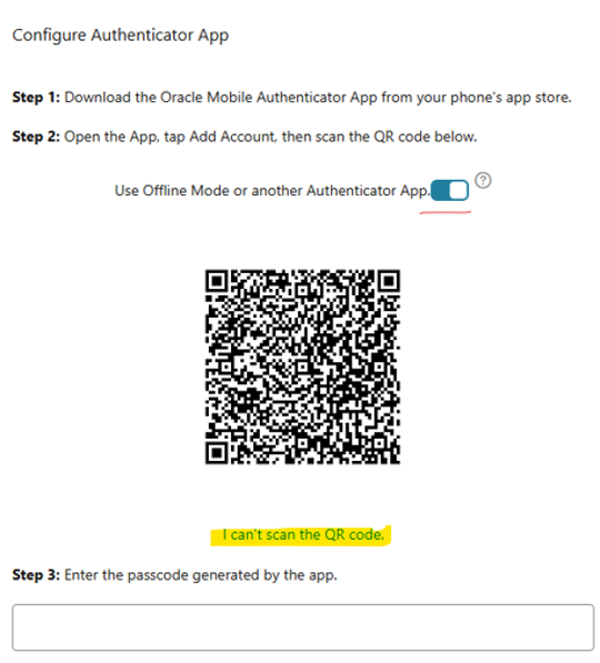
Select I can't scan the QR code.
Select the link shown on screen.
This will open the Oracle Mobile Authenticator app on your phone and add your account.
Select Continue to finish.
See screenshot below from authenticator app
You can use the Microsoft Authenticator app instead.
You will not receive a notification on your phone when using this method. You will need to enter a code from the app.
Set up Microsoft Authenticator
Sign in to Oracle Fusion using your usual details and select Next.
Select Mobile App.
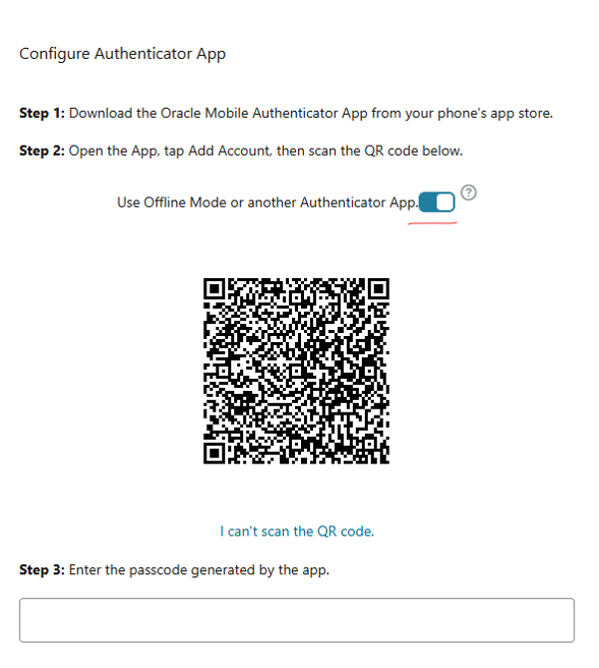
Turn on Use Offline Mode or another Authenticator App.
A new QR code will appear.
Open Microsoft Authenticator on your phone. If you do not already have the app, download it from Google Play or the App Store.
Use Microsoft Authenticator to scan the QR code.
The app will give you a one-time code.
Enter this code on the Oracle Fusion screen and select Verify.
Select Continue to finish.
Your security check is now set up.
See screenshot below from authenticator app
You can also receive a one-time security code by email.
Set up email
Sign in to Oracle Fusion using your usual details and select Next.
Select Email as your verification method.
A one-time code will be sent to your registered email address.
Check your email for the code.
Return to Oracle Fusion and enter each number into the boxes shown on screen.
Once your email address has been successfully set up, select Continue.
Your security check is now set up.
Get help
If you have a technical issue, log it through the Digital Services Portal. Sign in using your email address and password.
If you cannot access the portal, call the helpdesk on 01772 532626.